Features
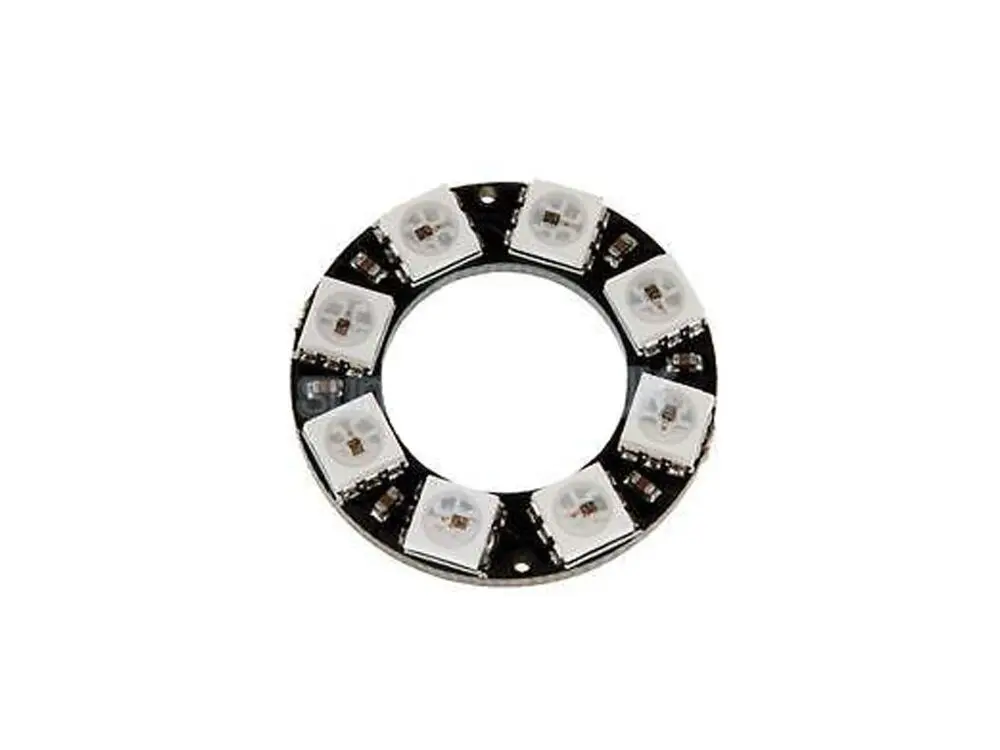
- 8 individually addressable RGB LEDs.
- Integrated WS2812 driver IC inside each 5050 LED.
- Single-wire digital communication interface.
- Uniform brightness and consistent color output.
- Supports cascading additional WS2812 modules.
- Data transfer speeds up to 800Kbps.
- Compatible with common NeoPixel libraries.
Specifications
- Operating Voltage: 5V DC
- LED Type: 5050 RGB with integrated WS2812 IC
- Number of LEDs: 8
- Brightness Resolution: 256 levels per color
- Color Depth: 24-bit (16,777,216 colors)
- Communication Interface: Single-wire digital
- Data Rate: Up to 800Kbps
Pinout
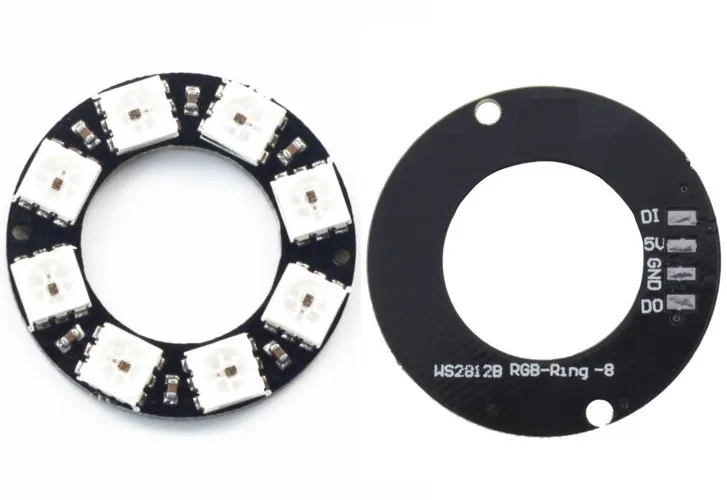
- GND – Ground connection
- VCC – 5V power supply
- IN – Digital data input from microcontroller
- OUT – Digital data output for cascading modules
Arduino Wiring

| Component | Arduino Pin | Notes |
|---|---|---|
| NeoPixel Ring | 6 | Digital pin used to control 8 WS2812 LEDs. 5V power from Arduino recommended; if using many LEDs, use external 5V power. |
| Buzzer | 10 | Tone output using toneAC library. Connect one pin to Arduino pin 10 and the other to GND. |
| GND | GND | Common ground for NeoPixel and Buzzer. |
| 5V | 5V | Power for NeoPixel if powering directly from Arduino. |
Important Notes:
-
NeoPixel data line is digital pin 6 (
#define PIN 6). -
Only power NeoPixels from Arduino if the total current is within safe limits. Otherwise, use a separate 5V supply and connect grounds together.
-
The buzzer uses pin 10 with
toneACto play melodies.
Arduino Example Code
Installation of Library
1. To install the Adafruit_NeoPixel library:
- Open Arduino IDE → Sketch → Include Library → Manage Libraries.
- Search for Adafruit NeoPixel.
- Click Install.
- Alternatively, download ZIP from GitHub and install via Sketch → Include Library → Add .ZIP Library.
2. toneAC Library (for Buzzer)
Method 1 (Library Manager):
-
Go to Sketch → Include Library → Manage Libraries…
-
Search for “toneAC”.
-
Click Install.
// NeoPixel Ring simple sketch (c) 2013 Shae Erisson
// Released under the GPLv3 license to match the rest of the
// Adafruit NeoPixel library

#include <Adafruit_NeoPixel.h>
#ifdef __AVR__
 #include <avr/power.h> // Required for 16 MHz Adafruit Trinket
#endif

// Which pin on the Arduino is connected to the NeoPixels?
#define PIN 6 // On Trinket or Gemma, suggest changing this to 1

// How many NeoPixels are attached to the Arduino?
#define NUMPIXELS 8 // Popular NeoPixel ring size

// When setting up the NeoPixel library, we tell it how many pixels,
// and which pin to use to send signals. Note that for older NeoPixel
// strips you might need to change the third parameter -- see the
// strandtest example for more information on possible values.
Adafruit_NeoPixel pixels(NUMPIXELS, PIN, NEO_GRB + NEO_KHZ800);

#define DELAYVAL 30 // Time (in milliseconds) to pause between pixels

//pixels.Color(255, 0, 0) // Red
//pixels.Color( 0, 255, 0) // Green
//pixels.Color( 0, 0, 255) // Blue
uint32_t colors[] = {pixels.Color(255, 0, 0), pixels.Color( 0, 255, 0), pixels.Color( 0, 0, 255)};
/////////////// end Neopixel //////////////

///////////// Buzzer ////////////
#include <toneAC.h>
#define pinBuzzer 10
// Melody liberated from the toneMelody Arduino example sketch by Tom Igoe.
int melody[] = { 262, 196, 196, 220, 196 };
int noteDurations[] = { 4, 8, 8, 4, 4};
////////////////////////////////

bool isON = false;
void setup() {
 // These lines are specifically to support the Adafruit Trinket 5V 16 MHz.
 // Any other board, you can remove this part (but no harm leaving it):
#if defined(__AVR_ATtiny85__) && (F_CPU == 16000000)
 clock_prescale_set(clock_div_1);
#endif
 // END of Trinket-specific code.

 pixels.begin(); // INITIALIZE NeoPixel strip object (REQUIRED)
 pixels.show(); // Turn OFF all pixels ASAP
 pixels.setBrightness(10); // Set BRIGHTNESS to about 1/5 (max = 255)
}

void loop() {
 ledsRingOn();
 buzzeMe();
 while(1); // Stop, prevent repeat forever
}


void ledsRingOn() {
 isON = true;
 int prevColor = 0;
 pixels.clear(); // Set all pixel colors to 'off'
 while(prevColor < 3){
 int prevLed = 0;
 for(int i=0; i<NUMPIXELS; i++) { // For each pixel...

 // pixels.Color() takes RGB values, from 0,0,0 up to 255,255,255
 // Here we're using a moderately bright green color:
 pixels.setPixelColor(prevLed, pixels.Color(0, 0, 0));
 pixels.setPixelColor(i, colors[prevColor]);
 prevLed = i;

 pixels.show(); // Send the updated pixel colors to the hardware.

 delay(DELAYVAL); // Pause before next pass through loop
 }
 prevColor++;
 }
 pixels.clear();
 pixels.show();
 isON = false;
}

void buzzeMe() {

 for (int thisNote = 0; thisNote < 5; thisNote++) {
 int noteDuration = 1000 / noteDurations[thisNote];
 // for Pin10 to buzzer GND(-)
 analogWrite(pinBuzzer, 0);
 delay(noteDuration);
 analogWrite(pinBuzzer, 255);
 delay(noteDuration * 1 / 4);
 // for Pin10 to buzzer VCC(+)
 //toneAC(melody[thisNote], 10, noteDuration, true); // Play thisNote at full volume for noteDuration in the background.
 //delay(noteDuration * 4 / 3); // Wait while the tone plays in the background, plus another 33% delay between notes.
 }
 //toneAC(0); //[Optional here] Turn off toneAC, can also use noToneAC().
 analogWrite(pinBuzzer, 255);

}
Applications
- Decorative and ambient lighting
- LED animations and visual effects
- Status indicators and dashboards
- Wearable electronics
- DIY and embedded projects
Resources
Features
- 8 individually addressable RGB LEDs.
- Integrated WS2812 driver IC inside each 5050 LED.
- Single-wire digital communication interface.
- Uniform brightness and consistent color output.
- Supports cascading additional WS2812 modules.
- Data transfer speeds up to 800Kbps.
- Compatible with common NeoPixel libraries.
Specifications
- Operating Voltage: 5V DC
- LED Type: 5050 RGB with integrated WS2812 IC
- Number of LEDs: 8
- Brightness Resolution: 256 levels per color
- Color Depth: 24-bit (16,777,216 colors)
- Communication Interface: Single-wire digital
- Data Rate: Up to 800Kbps
Pinout
- GND – Ground connection
- VCC – 5V power supply
- IN – Digital data input from microcontroller
- OUT – Digital data output for cascading modules
Arduino Wiring
| Component | Arduino Pin | Notes |
|---|---|---|
| NeoPixel Ring | 6 | Digital pin used to control 8 WS2812 LEDs. 5V power from Arduino recommended; if using many LEDs, use external 5V power. |
| Buzzer | 10 | Tone output using toneAC library. Connect one pin to Arduino pin 10 and the other to GND. |
| GND | GND | Common ground for NeoPixel and Buzzer. |
| 5V | 5V | Power for NeoPixel if powering directly from Arduino. |
Important Notes:
-
NeoPixel data line is digital pin 6 (
#define PIN 6). -
Only power NeoPixels from Arduino if the total current is within safe limits. Otherwise, use a separate 5V supply and connect grounds together.
-
The buzzer uses pin 10 with
toneACto play melodies.
Arduino Example Code
Installation of Library
1. To install the Adafruit_NeoPixel library:
- Open Arduino IDE → Sketch → Include Library → Manage Libraries.
- Search for Adafruit NeoPixel.
- Click Install.
- Alternatively, download ZIP from GitHub and install via Sketch → Include Library → Add .ZIP Library.
2. toneAC Library (for Buzzer)
Method 1 (Library Manager):
-
Go to Sketch → Include Library → Manage Libraries…
-
Search for “toneAC”.
-
Click Install.
// NeoPixel Ring simple sketch (c) 2013 Shae Erisson
// Released under the GPLv3 license to match the rest of the
// Adafruit NeoPixel library

#include <Adafruit_NeoPixel.h>
#ifdef __AVR__
 #include <avr/power.h> // Required for 16 MHz Adafruit Trinket
#endif

// Which pin on the Arduino is connected to the NeoPixels?
#define PIN 6 // On Trinket or Gemma, suggest changing this to 1

// How many NeoPixels are attached to the Arduino?
#define NUMPIXELS 8 // Popular NeoPixel ring size

// When setting up the NeoPixel library, we tell it how many pixels,
// and which pin to use to send signals. Note that for older NeoPixel
// strips you might need to change the third parameter -- see the
// strandtest example for more information on possible values.
Adafruit_NeoPixel pixels(NUMPIXELS, PIN, NEO_GRB + NEO_KHZ800);

#define DELAYVAL 30 // Time (in milliseconds) to pause between pixels

//pixels.Color(255, 0, 0) // Red
//pixels.Color( 0, 255, 0) // Green
//pixels.Color( 0, 0, 255) // Blue
uint32_t colors[] = {pixels.Color(255, 0, 0), pixels.Color( 0, 255, 0), pixels.Color( 0, 0, 255)};
/////////////// end Neopixel //////////////

///////////// Buzzer ////////////
#include <toneAC.h>
#define pinBuzzer 10
// Melody liberated from the toneMelody Arduino example sketch by Tom Igoe.
int melody[] = { 262, 196, 196, 220, 196 };
int noteDurations[] = { 4, 8, 8, 4, 4};
////////////////////////////////

bool isON = false;
void setup() {
 // These lines are specifically to support the Adafruit Trinket 5V 16 MHz.
 // Any other board, you can remove this part (but no harm leaving it):
#if defined(__AVR_ATtiny85__) && (F_CPU == 16000000)
 clock_prescale_set(clock_div_1);
#endif
 // END of Trinket-specific code.

 pixels.begin(); // INITIALIZE NeoPixel strip object (REQUIRED)
 pixels.show(); // Turn OFF all pixels ASAP
 pixels.setBrightness(10); // Set BRIGHTNESS to about 1/5 (max = 255)
}

void loop() {
 ledsRingOn();
 buzzeMe();
 while(1); // Stop, prevent repeat forever
}


void ledsRingOn() {
 isON = true;
 int prevColor = 0;
 pixels.clear(); // Set all pixel colors to 'off'
 while(prevColor < 3){
 int prevLed = 0;
 for(int i=0; i<NUMPIXELS; i++) { // For each pixel...

 // pixels.Color() takes RGB values, from 0,0,0 up to 255,255,255
 // Here we're using a moderately bright green color:
 pixels.setPixelColor(prevLed, pixels.Color(0, 0, 0));
 pixels.setPixelColor(i, colors[prevColor]);
 prevLed = i;

 pixels.show(); // Send the updated pixel colors to the hardware.

 delay(DELAYVAL); // Pause before next pass through loop
 }
 prevColor++;
 }
 pixels.clear();
 pixels.show();
 isON = false;
}

void buzzeMe() {

 for (int thisNote = 0; thisNote < 5; thisNote++) {
 int noteDuration = 1000 / noteDurations[thisNote];
 // for Pin10 to buzzer GND(-)
 analogWrite(pinBuzzer, 0);
 delay(noteDuration);
 analogWrite(pinBuzzer, 255);
 delay(noteDuration * 1 / 4);
 // for Pin10 to buzzer VCC(+)
 //toneAC(melody[thisNote], 10, noteDuration, true); // Play thisNote at full volume for noteDuration in the background.
 //delay(noteDuration * 4 / 3); // Wait while the tone plays in the background, plus another 33% delay between notes.
 }
 //toneAC(0); //[Optional here] Turn off toneAC, can also use noToneAC().
 analogWrite(pinBuzzer, 255);

}
Applications
- Decorative and ambient lighting
- LED animations and visual effects
- Status indicators and dashboards
- Wearable electronics
- DIY and embedded projects