Features
- All-in-one Raspberry Pi computer integrated into a keyboard
- Quad-core 64-bit ARM processor running at 1.8 GHz
- 4 GB LPDDR4 SDRAM
- Built-in 2.4 GHz and 5 GHz Wi-Fi
- Bluetooth 5.0 and Bluetooth Low Energy
- Gigabit Ethernet connectivity
- Pre-populated 40-pin GPIO header
- Dual micro-HDMI outputs with 4K support
- Built-in passive cooling system
- US keyboard layout
Principle of Operation
The Raspberry Pi 400 operates as a complete Linux-based personal computer with the main computer hardware integrated into the keyboard. The processor runs the operating system and applications while the USB, HDMI, Ethernet, wireless, and GPIO interfaces provide connections to peripherals, displays, networks, and electronics projects. The built-in passive cooling system dissipates heat without requiring an external fan.

Raspberry Pi 400 Setup Guide
The Raspberry Pi 400 is a complete desktop computer built into a keyboard. Before using it, you need to prepare the operating system, connect the required accessories, and complete the initial Raspberry Pi OS setup.
What You Need
- 1 x Raspberry Pi 400
- 1 x microSD card with Raspberry Pi OS installed
- 1 x USB-C power supply
- 1 x micro HDMI to HDMI cable
- 1 x HDMI monitor or TV
- 1 x USB mouse
- Network connection through Wi-Fi or Ethernet
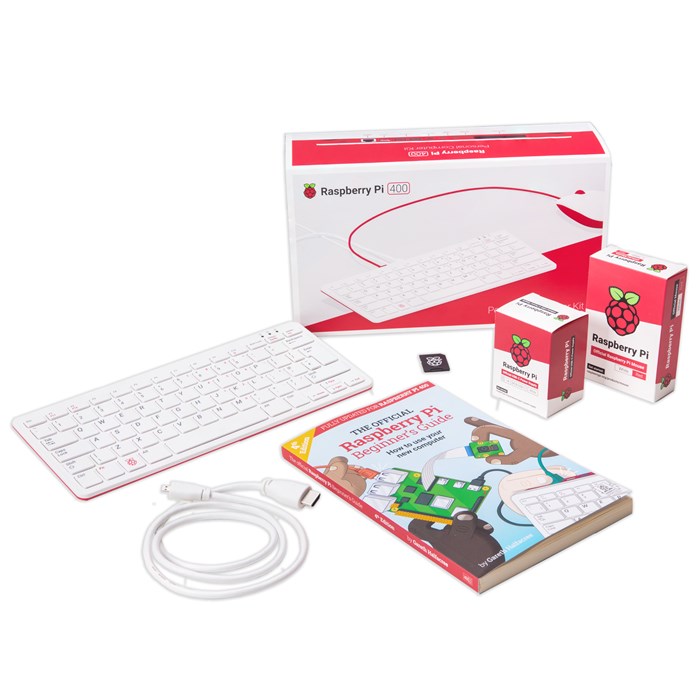
If your Raspberry Pi 400 kit already includes a microSD card with Raspberry Pi OS, you can skip the operating system installation section and continue with connecting the hardware. The official Raspberry Pi 400 kit can include a preloaded microSD card, power supply, mouse, and micro HDMI to HDMI cable.
Step 1: Prepare the microSD Card
If Raspberry Pi OS is not already installed on the microSD card, use Raspberry Pi Imager from another computer.
- Download and install Raspberry Pi Imager on a Windows, macOS, or Linux computer.
- Insert the microSD card into the computer using an SD card reader.
- Open Raspberry Pi Imager.
- Select Raspberry Pi 400 as the Raspberry Pi device.
- Select Raspberry Pi OS as the operating system.
- Select the connected microSD card as the storage device.
Raspberry Pi Imager can also configure settings such as the username, password, Wi-Fi network, hostname, and remote-access options before the first boot. This can make the first-time setup easier.
Step 2: Write Raspberry Pi OS to the microSD Card
- Check that you have selected the correct microSD card.
- Start the installation process in Raspberry Pi Imager.
- Confirm that the contents of the selected card can be erased.
- Wait while Raspberry Pi Imager downloads and writes Raspberry Pi OS to the card.
- Allow the verification process to finish.
- When the process is complete, safely remove the microSD card from the computer.
Important: Writing Raspberry Pi OS to the microSD card erases the existing contents of that card. Make sure that the correct storage device is selected before starting the process.
Step 3: Insert the microSD Card
- Turn the Raspberry Pi 400 off and disconnect the power supply.
- Turn the Raspberry Pi 400 over carefully.
- Insert the prepared microSD card into the microSD card slot.
- Make sure the card is fully inserted.
Step 4: Connect the Monitor
- Connect the micro HDMI end of the cable to one of the Raspberry Pi 400's micro HDMI ports.
- Connect the HDMI end to the monitor or TV.
- Select the correct HDMI input on the monitor.
Step 5: Connect the Mouse and Network
- Connect the USB mouse to one of the USB ports on the Raspberry Pi 400.
- If using Ethernet, connect an Ethernet cable between the Raspberry Pi 400 and your router.
- Alternatively, Wi-Fi can be configured during the Raspberry Pi OS setup.
Raspberry Pi OS supports both wired Ethernet and wireless network connections. If Wi-Fi information was configured in Raspberry Pi Imager, the Raspberry Pi can attempt to connect automatically during its first boot.
Step 6: Connect the Power Supply
- Connect the USB-C power supply to the Raspberry Pi 400 power connector.
- Connect the power supply to a suitable electrical outlet.
- The Raspberry Pi 400 will begin the boot process.
Do not disconnect the power while the operating system is being installed, updated, or writing important files.
Step 7: Complete the First Boot Setup
When Raspberry Pi OS starts for the first time, follow the instructions displayed on the screen.
- Select your country or region.
- Select the appropriate language and keyboard layout.
- Create or confirm the user account.
- Set a strong password.
- Connect to a Wi-Fi network if Ethernet is not being used.
- Follow the remaining instructions displayed by Raspberry Pi OS.
If these settings were already configured in Raspberry Pi Imager, some of these steps may not be required during the first boot.
Step 8: Update Raspberry Pi OS
After reaching the Raspberry Pi OS desktop, it is recommended to update the installed software.
Open Terminal from the desktop and run:
sudo apt updateAfter the package information has been updated, run:
sudo apt full-upgradeFollow any instructions shown in the terminal and allow the update process to finish. Raspberry Pi recommends keeping the operating system up to date.
Step 9: Restart the Raspberry Pi
After completing the updates, restart the Raspberry Pi 400:
sudo rebootAlternatively, you can restart the computer from the Raspberry Pi OS desktop menu.
Step 10: Test the Raspberry Pi 400
After restarting, check that the main functions are working correctly:
- Display output
- Keyboard input
- USB mouse
- Wi-Fi or Ethernet connection
- USB ports
- Audio output
- Internet access
Library Needed
No specific library is required for normal Raspberry Pi 400 desktop computer operation. Raspberry Pi OS already provides the operating system and standard applications required for general computer use.
Additional software packages or libraries can be installed depending on the project. For example, Python libraries can be installed when developing Python applications, while GPIO-related software can be installed when connecting electronic hardware to a compatible Raspberry Pi GPIO interface.
Simple Python Test
Raspberry Pi OS includes the Python programming environment. You can test Python by opening the Terminal and running:
python3Then enter:
print("Hello from Raspberry Pi 400")You should see:
Hello from Raspberry Pi 400To exit Python, enter:
exit()Creating a Python File
- Open the Raspberry Pi OS desktop.
- Open a text editor or Python development environment such as Thonny.
- Create a new Python file.
- Enter the following code:
print("Hello from Raspberry Pi 400")- Save the file with a
.pyextension, for examplehello.py. - Run the program.
Applications
- Desktop computing
- Python programming
- Linux learning
- Electronics and maker projects
- Programming education
- Web browsing
- Office and document work
- Media playback
- IoT and network projects
- Computer science education
Applications
- Learning Linux and programming
- Python programming
- Electronics and GPIO projects
- Desktop computing
- Home automation
- Educational projects
- Web and software development
- Media and general-purpose computing
Pinout
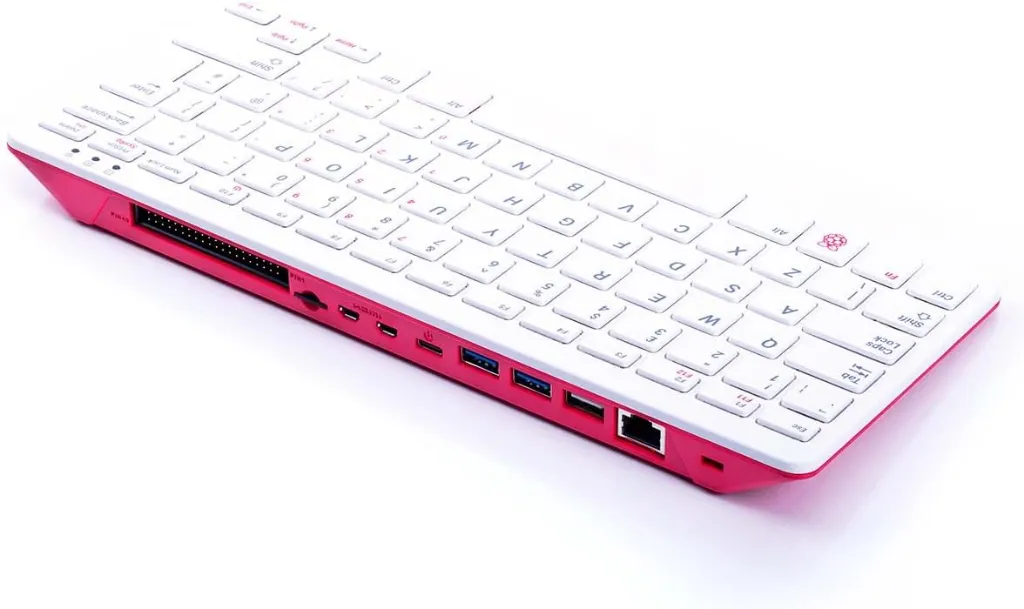
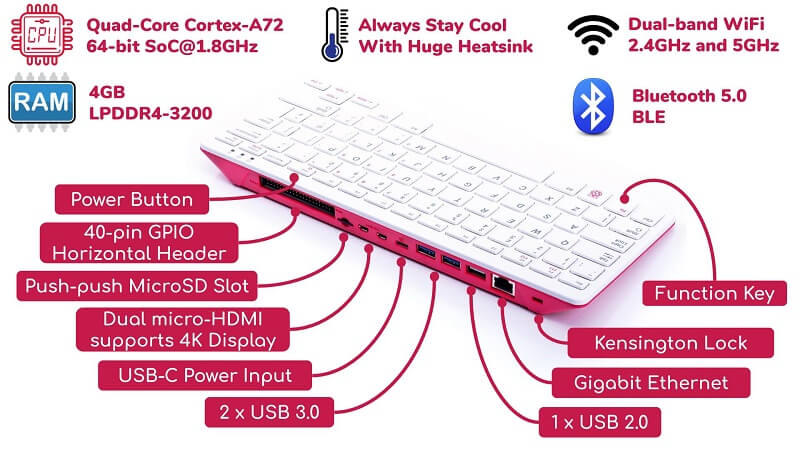
The Raspberry Pi 400 includes a pre-populated 40-pin GPIO header for connecting sensors, modules, displays, motors, and other electronic components. The GPIO header follows the standard Raspberry Pi 40-pin layout.
Specifications
- SoC: Broadcom BCM2711C0 quad-core A72 (ARMv8-A) 64-bit
- CPU: Quad-core ARM Cortex-A72 architecture @ 1.8 GHz
- GPU: Broadcom VideoCore IV
- RAM: 4 GB LPDDR4 SDRAM
- Wi-Fi: 2.4 GHz and 5 GHz 802.11b/g/n/ac
- Ethernet: Gigabit Ethernet
- Bluetooth: Bluetooth 5.0, BLE
- GPIO: 40-pin header, pre-populated
- Storage: microSD card slot
- Power Input: 1 x USB Type-C
- Display: 2 x micro-HDMI 2.0, up to 4K support
- USB: 1 x USB 2.0, 2 x USB 3.0
- Network Port: 1 x RJ45 Gigabit Ethernet
- Security: 1 x Kensington lock slot
- Cooling: Built-in passive heatsink
- Keyboard Layout: US
- Dimensions: 286 x 122 x 23.7 mm
- Weight: 385 g
Resources
Features
- All-in-one Raspberry Pi computer integrated into a keyboard
- Quad-core 64-bit ARM processor running at 1.8 GHz
- 4 GB LPDDR4 SDRAM
- Built-in 2.4 GHz and 5 GHz Wi-Fi
- Bluetooth 5.0 and Bluetooth Low Energy
- Gigabit Ethernet connectivity
- Pre-populated 40-pin GPIO header
- Dual micro-HDMI outputs with 4K support
- Built-in passive cooling system
- US keyboard layout
Principle of Operation
The Raspberry Pi 400 operates as a complete Linux-based personal computer with the main computer hardware integrated into the keyboard. The processor runs the operating system and applications while the USB, HDMI, Ethernet, wireless, and GPIO interfaces provide connections to peripherals, displays, networks, and electronics projects. The built-in passive cooling system dissipates heat without requiring an external fan.
Raspberry Pi 400 Setup Guide
The Raspberry Pi 400 is a complete desktop computer built into a keyboard. Before using it, you need to prepare the operating system, connect the required accessories, and complete the initial Raspberry Pi OS setup.
What You Need
- 1 x Raspberry Pi 400
- 1 x microSD card with Raspberry Pi OS installed
- 1 x USB-C power supply
- 1 x micro HDMI to HDMI cable
- 1 x HDMI monitor or TV
- 1 x USB mouse
- Network connection through Wi-Fi or Ethernet
If your Raspberry Pi 400 kit already includes a microSD card with Raspberry Pi OS, you can skip the operating system installation section and continue with connecting the hardware. The official Raspberry Pi 400 kit can include a preloaded microSD card, power supply, mouse, and micro HDMI to HDMI cable.
Step 1: Prepare the microSD Card
If Raspberry Pi OS is not already installed on the microSD card, use Raspberry Pi Imager from another computer.
- Download and install Raspberry Pi Imager on a Windows, macOS, or Linux computer.
- Insert the microSD card into the computer using an SD card reader.
- Open Raspberry Pi Imager.
- Select Raspberry Pi 400 as the Raspberry Pi device.
- Select Raspberry Pi OS as the operating system.
- Select the connected microSD card as the storage device.
Raspberry Pi Imager can also configure settings such as the username, password, Wi-Fi network, hostname, and remote-access options before the first boot. This can make the first-time setup easier.
Step 2: Write Raspberry Pi OS to the microSD Card
- Check that you have selected the correct microSD card.
- Start the installation process in Raspberry Pi Imager.
- Confirm that the contents of the selected card can be erased.
- Wait while Raspberry Pi Imager downloads and writes Raspberry Pi OS to the card.
- Allow the verification process to finish.
- When the process is complete, safely remove the microSD card from the computer.
Important: Writing Raspberry Pi OS to the microSD card erases the existing contents of that card. Make sure that the correct storage device is selected before starting the process.
Step 3: Insert the microSD Card
- Turn the Raspberry Pi 400 off and disconnect the power supply.
- Turn the Raspberry Pi 400 over carefully.
- Insert the prepared microSD card into the microSD card slot.
- Make sure the card is fully inserted.
Step 4: Connect the Monitor
- Connect the micro HDMI end of the cable to one of the Raspberry Pi 400's micro HDMI ports.
- Connect the HDMI end to the monitor or TV.
- Select the correct HDMI input on the monitor.
Step 5: Connect the Mouse and Network
- Connect the USB mouse to one of the USB ports on the Raspberry Pi 400.
- If using Ethernet, connect an Ethernet cable between the Raspberry Pi 400 and your router.
- Alternatively, Wi-Fi can be configured during the Raspberry Pi OS setup.
Raspberry Pi OS supports both wired Ethernet and wireless network connections. If Wi-Fi information was configured in Raspberry Pi Imager, the Raspberry Pi can attempt to connect automatically during its first boot.
Step 6: Connect the Power Supply
- Connect the USB-C power supply to the Raspberry Pi 400 power connector.
- Connect the power supply to a suitable electrical outlet.
- The Raspberry Pi 400 will begin the boot process.
Do not disconnect the power while the operating system is being installed, updated, or writing important files.
Step 7: Complete the First Boot Setup
When Raspberry Pi OS starts for the first time, follow the instructions displayed on the screen.
- Select your country or region.
- Select the appropriate language and keyboard layout.
- Create or confirm the user account.
- Set a strong password.
- Connect to a Wi-Fi network if Ethernet is not being used.
- Follow the remaining instructions displayed by Raspberry Pi OS.
If these settings were already configured in Raspberry Pi Imager, some of these steps may not be required during the first boot.
Step 8: Update Raspberry Pi OS
After reaching the Raspberry Pi OS desktop, it is recommended to update the installed software.
Open Terminal from the desktop and run:
sudo apt updateAfter the package information has been updated, run:
sudo apt full-upgradeFollow any instructions shown in the terminal and allow the update process to finish. Raspberry Pi recommends keeping the operating system up to date.
Step 9: Restart the Raspberry Pi
After completing the updates, restart the Raspberry Pi 400:
sudo rebootAlternatively, you can restart the computer from the Raspberry Pi OS desktop menu.
Step 10: Test the Raspberry Pi 400
After restarting, check that the main functions are working correctly:
- Display output
- Keyboard input
- USB mouse
- Wi-Fi or Ethernet connection
- USB ports
- Audio output
- Internet access
Library Needed
No specific library is required for normal Raspberry Pi 400 desktop computer operation. Raspberry Pi OS already provides the operating system and standard applications required for general computer use.
Additional software packages or libraries can be installed depending on the project. For example, Python libraries can be installed when developing Python applications, while GPIO-related software can be installed when connecting electronic hardware to a compatible Raspberry Pi GPIO interface.
Simple Python Test
Raspberry Pi OS includes the Python programming environment. You can test Python by opening the Terminal and running:
python3Then enter:
print("Hello from Raspberry Pi 400")You should see:
Hello from Raspberry Pi 400To exit Python, enter:
exit()Creating a Python File
- Open the Raspberry Pi OS desktop.
- Open a text editor or Python development environment such as Thonny.
- Create a new Python file.
- Enter the following code:
print("Hello from Raspberry Pi 400")- Save the file with a
.pyextension, for examplehello.py. - Run the program.
Applications
- Desktop computing
- Python programming
- Linux learning
- Electronics and maker projects
- Programming education
- Web browsing
- Office and document work
- Media playback
- IoT and network projects
- Computer science education
Applications
- Learning Linux and programming
- Python programming
- Electronics and GPIO projects
- Desktop computing
- Home automation
- Educational projects
- Web and software development
- Media and general-purpose computing
Pinout
The Raspberry Pi 400 includes a pre-populated 40-pin GPIO header for connecting sensors, modules, displays, motors, and other electronic components. The GPIO header follows the standard Raspberry Pi 40-pin layout.
Specifications
- SoC: Broadcom BCM2711C0 quad-core A72 (ARMv8-A) 64-bit
- CPU: Quad-core ARM Cortex-A72 architecture @ 1.8 GHz
- GPU: Broadcom VideoCore IV
- RAM: 4 GB LPDDR4 SDRAM
- Wi-Fi: 2.4 GHz and 5 GHz 802.11b/g/n/ac
- Ethernet: Gigabit Ethernet
- Bluetooth: Bluetooth 5.0, BLE
- GPIO: 40-pin header, pre-populated
- Storage: microSD card slot
- Power Input: 1 x USB Type-C
- Display: 2 x micro-HDMI 2.0, up to 4K support
- USB: 1 x USB 2.0, 2 x USB 3.0
- Network Port: 1 x RJ45 Gigabit Ethernet
- Security: 1 x Kensington lock slot
- Cooling: Built-in passive heatsink
- Keyboard Layout: US
- Dimensions: 286 x 122 x 23.7 mm
- Weight: 385 g